Security Audit Conducted: October 18–19, 2026
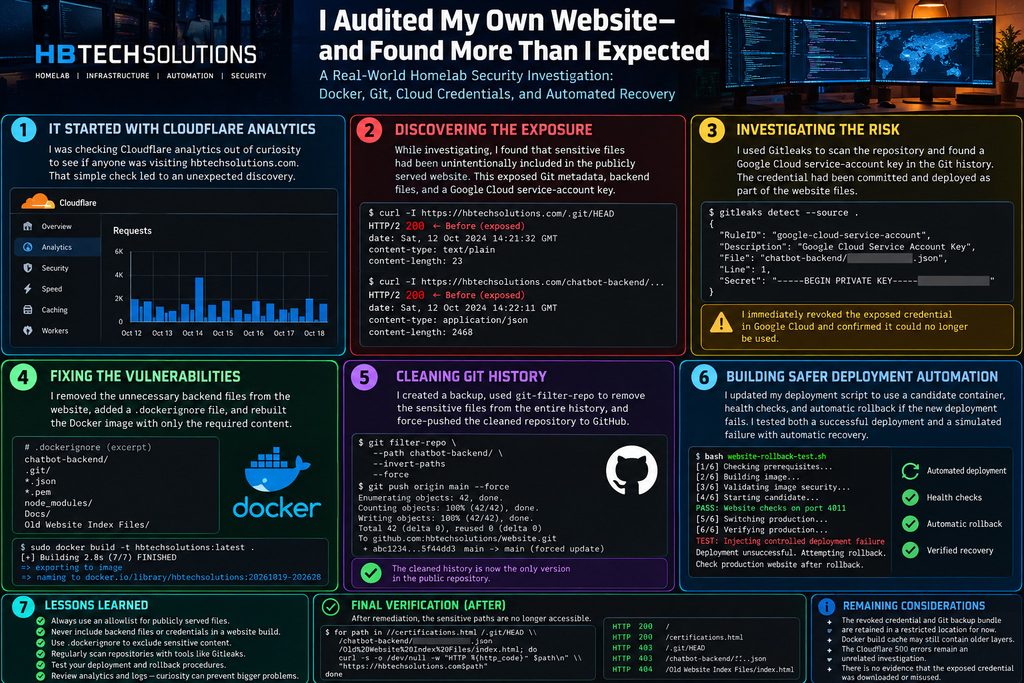
How a simple look at website analytics turned into a real-world homelab security investigation involving Docker, Git, cloud credentials, and automated recovery.
It Started With a Simple Question
I recently found myself wondering something pretty straightforward: was anyone actually visiting my website?
Like many people running a personal homelab, I spend a lot of time building, maintaining, troubleshooting, and documenting projects. HBTECHSOLUTIONS is where I share that work, including infrastructure tutorials, certifications, automation projects, and my Data Center in a Bag series.
I decided to take a closer look at my Cloudflare analytics to see what kind of traffic my website was receiving.
What started as curiosity turned into something much bigger than I expected.
While reviewing the traffic and investigating unusual HTTP responses, I began questioning whether my website was exposing information that visitors were never supposed to see.
That question led me into a full security review of my own environment.
And, as it turned out, I had some work to do.
Discovering the Exposure
My website runs inside a Docker container using Nginx, with Cloudflare and a reverse proxy handling the public-facing traffic.
The setup had worked well for quite some time. Pages loaded, downloads worked, and the AI chatbot on the website continued responding to questions.
However, functionality doesn’t necessarily mean security.
As I began inspecting the web server and its document root, I discovered that my original Docker image had included far more than the files needed to serve the website.
Instead of containing only the published HTML pages, stylesheets, JavaScript, images, and downloadable guides, the container also included development-related files.
Among the unnecessary material were Git repository metadata, historical website files, and portions of the chatbot backend.
The most concerning discovery was a Google Cloud service-account credential file.
That was definitely not something I intended to make available through a public website.
The underlying problem came down to how I had originally built the Docker image. The Dockerfile used a broad copy operation that placed the build context inside Nginx’s public document root.
Without a carefully maintained exclusion list, files that belonged in my development environment could end up inside the production website.
That was my first major lesson from this investigation: just because a file isn’t linked anywhere on your website doesn’t mean it cannot be accessed directly.
Investigating the Credential Exposure
Finding a credential file inside a public web directory immediately changed the priority of the investigation.
I needed to determine whether the credential was real, whether it was still valid, and whether it existed anywhere else.
I started by reviewing the website’s Git repository.
After checking tracked files and searching the history, I used Gitleaks to scan for potentially sensitive information.
The scan identified one private-key finding in the repository’s historical commits.
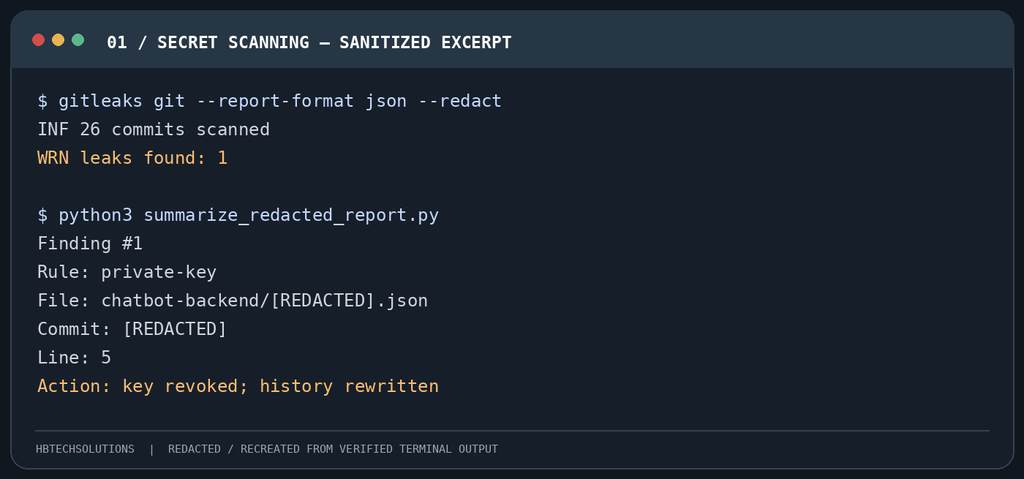
I compared the finding with the corresponding Google Cloud service-account key in the Google Cloud console. The identifying portion matched an active key associated with the project.
At that point, there was no reason to leave the credential active.
I revoked and deleted the service-account key through Google Cloud.
I also checked how the chatbot actually authenticated. Its application code used a separate Gemini API key supplied through the container’s environment configuration, so the exposed service-account file wasn’t required for the chatbot’s normal operation.
That was an important distinction. I wanted to eliminate the credential risk without unnecessarily disrupting a working application.
I also discovered an old Google Maps API key reference left over from an earlier version of the website design. After determining that the related map functionality was obsolete, I removed that integration from the current homepage.
I cannot say that someone downloaded or abused the service-account credential. I did not establish evidence of that during the investigation.
What I can say is that the file was unnecessarily present in a publicly served location, and the credential was active when I identified it.
That was sufficient justification to revoke it and fix the deployment.
Rebuilding the Website With Security in Mind
Once the credential was revoked, I turned my attention to the Docker image itself.
My objective was straightforward: remove development artifacts and sensitive files from the production image while preserving everything visitors actually needed.
I created and refined a .dockerignore file to exclude private backend files, Git metadata, development scripts, temporary documents, historical website versions, archived guides, and other material unrelated to the published website.
Rather than immediately replacing the production container, I built a new image and inspected its contents.
The new image contained the expected public website files and published downloads.
The unnecessary development material was absent.
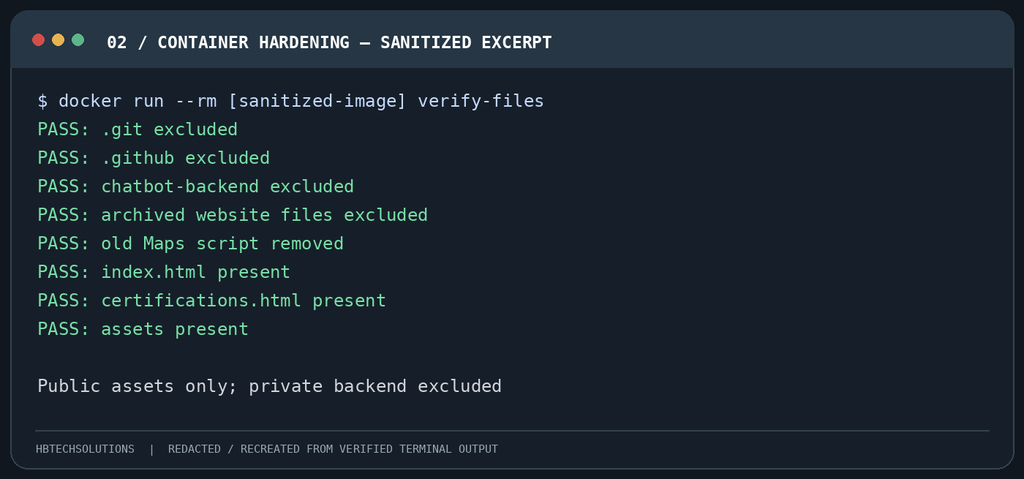
I also verified that the site still served its homepage, certifications page, and downloadable technical guides.
The chatbot continued functioning because its backend was a separate service and did not depend on the sensitive files being present in the public-facing Nginx container.
On top of the Docker changes, I reviewed the reverse proxy’s security rules to ensure requests for sensitive paths were blocked.
This gave me multiple layers of protection: excluding private files from the build, restricting their exposure at the web server, and applying additional protections at the reverse proxy.
One architectural improvement remains on my roadmap: replacing the broad Dockerfile copy operation with a strict allowlist of published files. That would make future deployments safer by default.
Cleaning Up Git History
Removing a sensitive file from the latest version of a repository doesn’t necessarily remove it from Git history.
Even after deleting the file from the current branch, older commits can still contain the original data.
Since my repository is private, this wasn’t equivalent to publishing the key in a public GitHub repository. However, repository privacy alone wasn’t a reason to leave the historical credential untouched.
I wanted to clean it up properly.
First, I created and verified a Git bundle containing the original repository history.
I then created an isolated clone so I could perform the history rewrite without modifying my live website working directory.
Using git-filter-repo, I removed the identified credential file from the clone’s reachable commit history.
Afterward, I verified that the filename no longer appeared in the cleaned history, checked repository integrity, and compared the latest committed file tree against the original.
The file trees matched.
That meant the rewritten history retained the current committed website content while removing the identified credential from historical commits.
I then updated my private GitHub repository using a lease-protected force push, synchronized my original working repository with the cleaned history, and confirmed that my uncommitted work had been preserved.
Finally, I expired obsolete local Git references and pruned unreachable objects from the active working repository.
The original historical commit was no longer accessible from that repository.
The revoked credential itself was moved out of the website source tree into a restricted quarantine location.
I retained a separate protected recovery bundle temporarily. Rewriting Git history does not guarantee that every historical copy or provider-side cached object has been physically erased, so revoking the key remained the most important security action.
Turning the Investigation Into Better Automation
At this point, the website was considerably cleaner, but the investigation had highlighted another issue.
My deployment process needed improvement.
I had been using a simple script to rebuild and restart the website. It was convenient, but I wanted a more dependable process that could validate a new deployment before replacing a working production container.
So I redesigned my ./website deployment script.
The updated process builds a fresh Docker image, checks the image for sensitive and unnecessary files, starts a temporary candidate container, and tests the required website resources.
Only after the candidate passes its checks does the script proceed to replace the production container.
The previous container is preserved as a rollback option.
Once the new container starts, the script performs another set of health checks.
If the deployment fails, the rollback handler attempts to remove the failed replacement and restore the previously working container.
That sounded good in theory.
But I wanted to prove it actually worked.
Putting Automated Rollback to the Test
I started by deploying the updated production website through the new automation.
The deployment completed successfully, and I verified that the public website and chatbot were still functioning.
Next came the more interesting test: failure recovery.
I created an isolated testing environment using separate Docker container names and localhost-bound ports.
First, I manually simulated a failed replacement. The deliberately broken container returned an HTTP 403 response instead of the expected homepage.
I removed the failed container, restored the original test container, and received HTTP 200 again.
That confirmed the underlying Docker recovery procedure worked.
Then I tested the automation itself.
I created an isolated copy of the deployment script, changed its container names and ports, and introduced a controlled failure after the replacement container had started.
The candidate passed its checks, the test environment switched containers, and the deliberate failure triggered the script’s rollback handler.
The script removed the replacement and restored the previous test container.
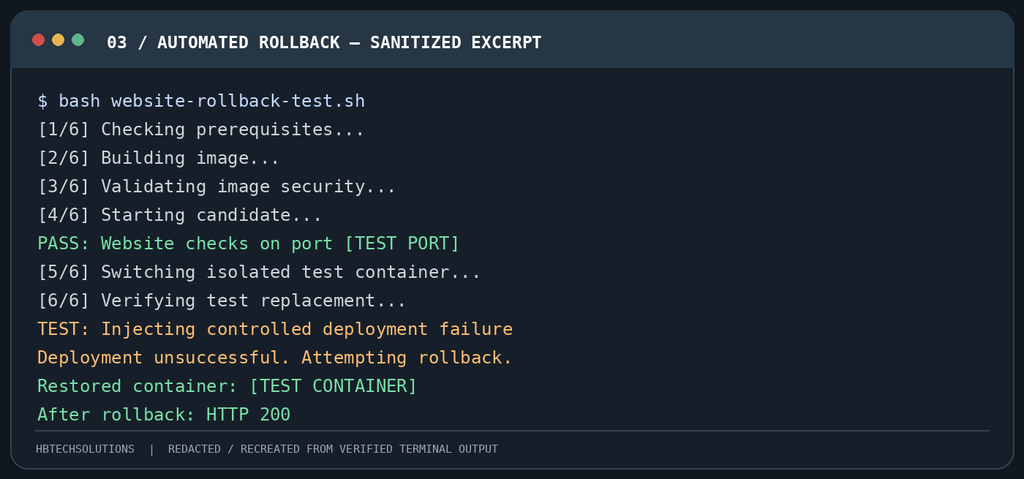
After recovery, the restored website returned HTTP 200.
The actual production website remained online throughout the isolated testing.
This wasn’t a test of every possible failure, such as a host crash or storage failure. But it demonstrated that the automatic rollback logic worked for the post-cutover failure scenario we deliberately tested.
And that gave me considerably more confidence in the deployment process.
Checking the Network Exposure
I also reviewed how my website services were exposed to the network.
Docker was publishing the website and chatbot backend ports on the host’s available interfaces. The host’s UFW firewall was inactive, so I wanted to understand whether those services could be reached directly from outside my network.
I reviewed my router’s forwarding configuration, the server’s IPv4 and IPv6 addresses, and the intended path through Cloudflare and the reverse proxy.
The router forwarded web traffic to the reverse proxy and exposed a separate VPN endpoint. It did not have direct port-forwarding rules for the website or chatbot backend ports.
The physical server interface had a private IPv4 address and no publicly routable IPv6 address. The additional IPv6 address belonged to a private tunnel interface.
I did not identify an obvious direct public route to those application ports in the checks performed.
However, this was a basic origin-exposure review, not a comprehensive external penetration test of every possible tunnel or ingress path.
I left the working firewall and container networking configurations unchanged rather than making broad changes that could disrupt unrelated services.
Final Verification
After completing the major remediation work, I ran one final set of HTTP checks against the public website.
The homepage and certifications page returned HTTP 200.
Requests to the tested Git metadata and former credential paths returned HTTP 403.
A tested historical website path returned HTTP 404.
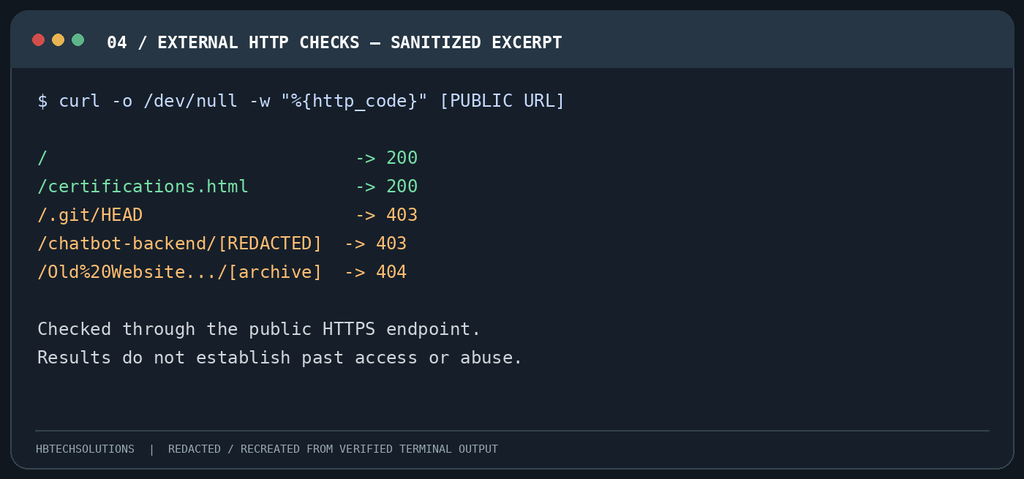
Those results confirmed that the checked public content remained accessible and the specific sensitive paths were no longer publicly available.
I also confirmed that the active Git repository was synchronized with the cleaned GitHub history, the production container was running, and the temporary rollback testing containers had been removed.
A few housekeeping items remained, including decisions about retained forensic backups and historical Docker cache. The original Cloudflare HTTP 500 traffic also remained a separate investigation because I hadn’t established a causal connection between those responses and the credential exposure.
What I Learned
This investigation reinforced several important lessons for me.
A functioning application isn’t necessarily a secure application. My website worked as expected, but the original deployment included files that had no business being publicly served.
Build contexts deserve the same attention as application code. A broad Dockerfile copy instruction can unintentionally publish material that developers assume will remain private.
Removing a credential file isn’t the same thing as revoking the credential. When I confirmed the service-account key was active, revocation took priority. Cleaning Git history and deployment artifacts followed.
Git history is part of the security picture. Deleting a file from the latest commit doesn’t erase every historical copy.
Recovery procedures need to be tested. Writing rollback logic is useful, but deliberately triggering a failure and watching the automation recover provides much stronger evidence that it works.
And perhaps my biggest takeaway was the importance of curiosity.
This entire investigation began because I wanted to know whether anyone was visiting my website.
I didn’t start out intending to perform a security audit, rewrite Git history, revoke a cloud credential, or build a safer deployment pipeline.
But once I discovered the issue, I followed it through.
Final Thoughts
One thing I’ve always enjoyed about maintaining my homelab is that it constantly gives me opportunities to learn.
Sometimes that means building something new. Other times it means finding a problem in something I’ve already built and figuring out how to correct it.
This experience was a little of both.
I started with website analytics and ended up learning more about credential handling, secure Docker builds, Git history management, reverse-proxy protections, deployment validation, and recovery automation.
Most importantly, I came out of it with a better-secured website and a more reliable process for maintaining it.
Security isn’t something you configure once and never revisit.
It’s an ongoing process of reviewing, testing, improving, and sometimes discovering that something you thought was fine needs another look.
And in this case, all it took was a little curiosity about website traffic.
HBTECHSOLUTIONS — Keep building. Keep learning. Keep improving.